
MTS Sudo Login | Login As User for SuiteCRM Admins
Stop asking employees for their passwords. MTS Sudo Login gives SuiteCRM Administrators a secure, one-click button to temporarily log into the CRM as any other user to replicate bugs and verify permissions.
Why Every Admin Needs Sudo Login?
- Instant Troubleshooting: See exactly what the user sees to resolve role, team, and security group issues in seconds.
- Zero Password Sharing: Maintain strict IT security policies. Admins never need to know or reset a user’s password.
- One-Click Return: After testing, click the “Return to Admin” button to instantly switch back to your own session.
- Complete Audit Trail: All sudo sessions are logged, ensuring total accountability for compliance purposes.
📸 Visual Walkthrough & Interface Preview
Take a visual tour of the features and settings:
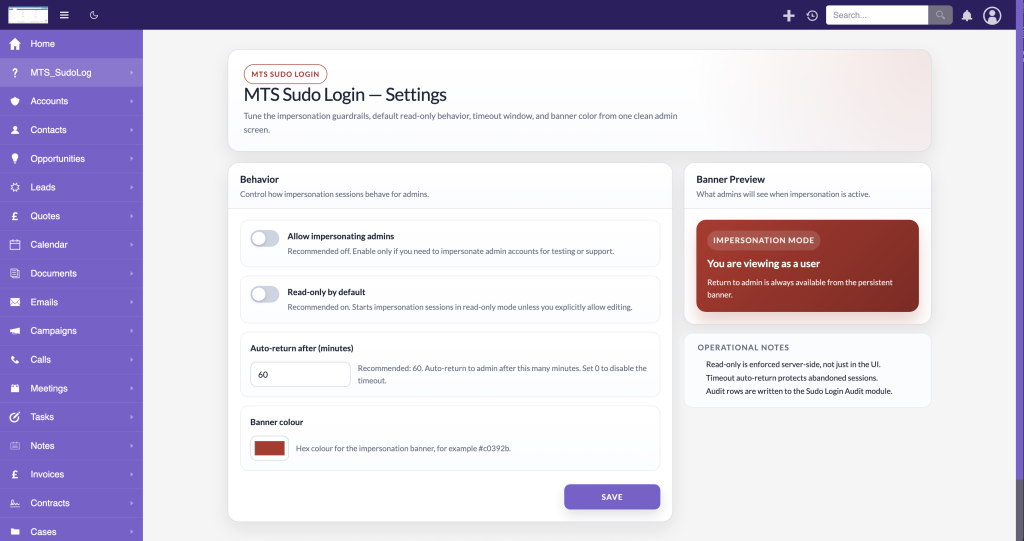
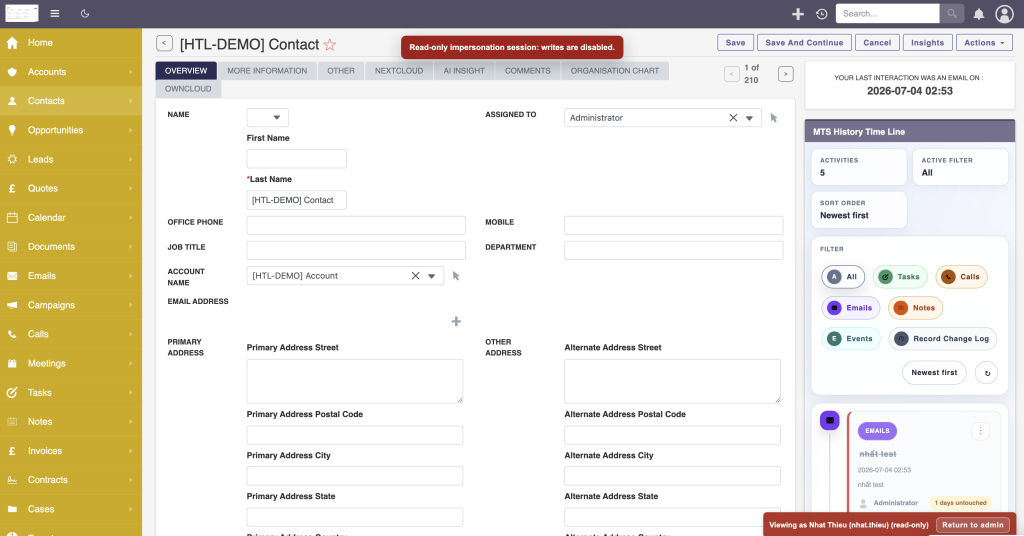
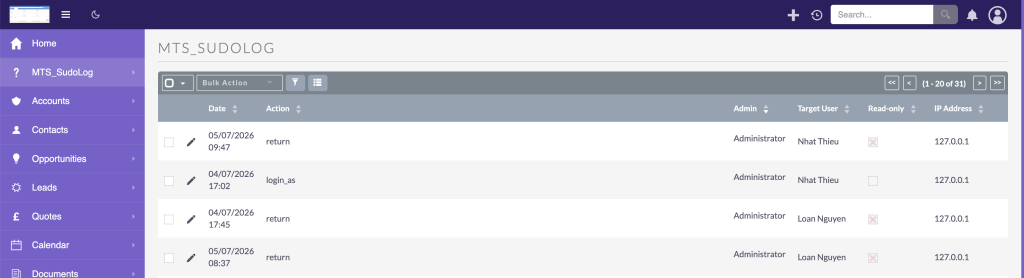
Powerful and secure administrative capabilities:
Seamless Session Switching
Bypasses standard authentication securely via core tokens, instantly loading the target user's exact UI and ACL permissions.
Strict Admin-Only Access
The "Login As" button is strictly isolated and visible only to Global Administrators.
Action Auditing
Tracks when an admin assumes another identity, providing logs to meet ISO and SOC2 compliance standards.
Installation & Setup Guide
Enable secure identity impersonation for global administrators to troubleshoot permission issues.
1. System Requirements
- SuiteCRM: Version 8.7 to 8.10 (Community Edition).
- PHP: Version 8.1 or later.
2. How to Install
- Navigate to Admin > Module Loader.
- Upload the package and click Install.
- Accept the prompts, and run a Quick Repair and Rebuild.
3. Setup & Operation
- Go to Admin > MTS Sudo Login > License and validate your activation key.
- Navigate to the Users module and select any user profile.
- Click the "Login as this user" button. The page will reload and a colored banner will appear.
Troubleshooting: If the Return to Admin banner does not display, ensure your CRM theme does not possess custom CSS hiding fixed floating elements.
No changelog entries yet.
What does MTS Sudo Login do?
MTS Sudo Login lets a SuiteCRM 8 administrator log in as any user to see the CRM exactly as that person sees it. It records every session, offers a read-only mode, and shows a clear banner during impersonation.
Who is MTS Sudo Login for?
It is for SuiteCRM 8 administrators and support teams who need to troubleshoot user issues, verify permissions, or inspect data on a user's behalf. Regular users cannot impersonate anyone.
Does it need the user\'s password?
No. Impersonation starts from the user's profile with one click and never requires or reveals their password.
Installation Questions
Where do I get MTS Sudo Login?
You get MTS Sudo Login from the SuiteCRM Store. After purchase you receive an installable package and a license key.
What do I do after installing it?
Validate your license on the License page, then open Settings to choose your impersonation rules, read-only default, timeout, and banner colour.
Does installing it change my existing data?
No. Installing MTS Sudo Login does not alter your existing records. It adds the Login As feature and a separate audit history.
Configuration Questions
Can admins log in as other admins?
Only if you turn on the 'Allow impersonating admins' setting. It is off by default to protect administrator accounts.
What does read-only by default do?
It makes every new session start in read-only mode, so admins can look without changing anything unless editing is specifically allowed. It is the recommended setting.
How does the auto-return timeout work?
The timeout automatically returns an admin to their own account after the number of minutes you set. Enter 0 to turn the timeout off.
Can I change the banner colour?
Yes. In Settings you choose the banner colour so it stands out clearly against your theme.
Do I configure it separately for each module?
No. MTS Sudo Login is configured once in Settings and applies to impersonation across your CRM.
Usage Questions
Why is the Login as button not showing?
The button appears only for administrators, only on a user's detail page, and never on your own account. Confirm your license is valid and refresh your browser if it is still missing.
What does the banner show?
The banner shows the name of the user you are viewing and whether the session is read-only. It also holds the Return to admin button, which is always available.
Can I edit records while impersonating?
Only when the session is not read-only. If the banner shows read-only, saving and editing are blocked and you can view only.
How do I return to my own account?
Click Return to admin in the banner. SuiteCRM reloads into your own account and opens the Users list.
Security Questions
Is impersonation safe for our data?
Yes. Read-only sessions block all changes on the server, and every session is recorded in the audit history, so impersonation is both controlled and accountable.
Who can configure MTS Sudo Login?
Only administrators can open the Settings, Audit, and License pages, and only administrators can start a Login As session.
Is a record kept of who impersonated whom?
Yes. Every Login As and Return is written to the Sudo Login Audit, including the admin, the target user, whether it was read-only, the time, and the address it came from.
Troubleshooting Questions
The banner disappeared during my session. What happened?
The session likely ended, either because you returned to admin or the timeout closed it. Open a user and start a new session if you still need to view their account.
A warning appears when I try to save. Why?
Your session is read-only, so changes are blocked. Start a new session with editing allowed if you need to make changes.
The audit page shows no entries. Why?
No entries appear until at least one Login As has been run since installation. Confirm you are viewing the page as an administrator and run Quick Repair and Rebuild if the page does not load.
The Login As feature is unavailable. What should I check?
Check the License page and validate your key. The feature stays disabled until your license is confirmed.
Billing Questions
What is included with my purchase?
Your purchase includes the MTS Sudo Login plugin, license validation, and updates for your licensed period.
Can I use it on more than one server?
Licensing is tied to your purchase terms. Contact us if you need to run MTS Sudo Login on additional servers.
What happens when my license expires?
When a yearly license lapses, the Login As feature is disabled until you renew. Your existing audit history and admin access are not removed.
Is there a one-time purchase option?
Yes. A one-time or enterprise option is available. Contact us for details and pricing.
How It Works Questions
Does it work in real time?
Yes. Logging in as a user and returning to admin both take effect immediately after the page reloads.
Does read-only really stop changes, or is it just a warning?
It really stops changes. Read-only limits are applied on the server, so saves and edits are blocked even if someone tries to bypass the on-screen controls.
Can I impersonate an inactive user?
No. You can only log in as a user who is active. Inactive or removed users cannot be impersonated.
Does the audit keep working after users leave?
Yes. Audit entries record the names captured at the time, so your history stays complete even after users are changed or removed.
Website: mientrungsoft.com
Email: anhnhatuit@gmail.com
WhatsApp: +84973131884
Related SuiteCRM Plugins
SuiteCRM Group Layout: Custom Views per Security Group in SuiteCRM 8
Is your CRM cluttered with unnecessary fields, irrelevant tabs, or complex list columns that confuse your team? A generic interface rarely fits a growing organization. Sales representatives need quick access to lead stages, while managers require high-level reporting fields. Showing the exact same form layout to every department leads to data errors and lower CRM […]

MTS Language Translate Tool
Translate labels, dropdowns, module names, and custom strings directly inside SuiteCRM without editing PHP language files.
MTS Custom Login Page for SuiteCRM | Professional Branded Portal
Transform your SuiteCRM 8 login screen with custom logos, responsive templates, and dynamic background slideshows. No coding required.
Request this plugin
We don't run automated checkout yet — every order goes through a short form so we can confirm your SuiteCRM version, license type, and send a secure payment link.