
SuiteCRM Group Layout: Custom Views per Security Group in SuiteCRM 8
Is your CRM cluttered with unnecessary fields, irrelevant tabs, or complex list columns that confuse your team?
A generic interface rarely fits a growing organization. Sales representatives need quick access to lead stages, while managers require high-level reporting fields. Showing the exact same form layout to every department leads to data errors and lower CRM adoption.
With MTS Group Layouts, you can effortlessly configure a tailored SuiteCRM group layout for every Security Group using native drag-and-drop tools—without writing a single line of custom code!
What is MTS Group Layouts for SuiteCRM 8?
MTS Group Layouts is a dedicated SuiteCRM 8 extension that solves the limitation of single-layout modules. It enables administrators to assign distinct form layouts, list views, search filters, and popups to specific Security Groups (such as Sales, Support, or Executive Management).
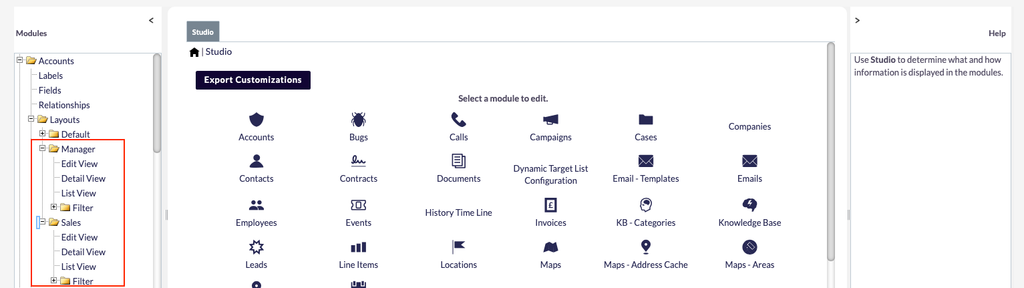
When a user logs in, the system dynamically detects their Primary Security Group and presents the exact SuiteCRM group layout assigned to their role.
Key Features of SuiteCRM Group Layout Manager
1. Multi-View Customization Across Modules
Customize every aspect of your SuiteCRM 8 module views:
- Detail View: Show only relevant fields and panels for each department.
- Edit View: Simplify data entry forms to increase team efficiency.
- List View: Customize visible list columns per Security Group.
- Search & Filters: Streamline search forms so users find records faster.
- Popups (Record Picker): Control popup fields when selecting related records.
2. Native SuiteCRM Studio Integration
No complex coding or core overrides required. MTS Group Layouts integrates directly into SuiteCRM’s native Studio. Simply open Studio, select the layout by Security Group name, drag and drop your fields, and click Save & Deploy.
3. One-Click Layout Cloning
Save hours of manual setup. Use the Clone from feature to copy existing layouts from default module settings or another Security Group instantly.
4. Flexible Active/Off Toggle
Enable or disable any SuiteCRM group layout with a single click. If deactivated, the module automatically reverts to its default view without deleting your custom configuration.
5. 100% Upgrade-Safe Architecture
Built strictly according to SuiteCRM 8 extension standards, this plugin never modifies core system files. Your group layouts remain completely intact through future SuiteCRM updates.
How SuiteCRM Group Layout Rendering Works
The plugin automatically processes views based on user permissions:
Plaintext
[User Opens Module] ➔ [Fetch Primary Security Group] ➔ [Check Active Group Layout]
                                                               │
                                     ┌─────────────────────────┴────────────────────────┐
                                     ▼                                                  ▼
                              【 Active Found 】                               【 Not Active / None 】
                         Render SuiteCRM Group Layout              Render System Default Layout
Supported view types
| View type | Description | Status |
|---|---|---|
| Detail view | Record detail screen | Supported |
| Edit view | Create / edit record screen | Supported |
| List view | List & displayed columns | Supported |
| Search / Filters | Filters & search | Supported |
| Popup (record picker) | Record-selection modal on relate fields | Supported |
2 Installation
- Sign in as an Administrator.
- Go to Admin → Module Loader.
- Upload
MTS_Group_Layout_Manager_1.0.0.zipand click Upload. - Click Install and wait for it to finish.
- After installing, run Admin → Quick Repair and Rebuild (recommended).
3 Activating your license
MTS Group Layout Manager requires a valid license key (purchased on the SuiteCRM Store) before use. While not activated, the management screen shows a license-required message and per-group layouts are not applied.
- Go to Admin → Group Layouts License.
- Sign in to the SuiteCRM Store → Account → Purchases, and copy the key for MTS Group Layout Manager.
- Paste the key into the License Key box and click Validate.
- When Success! appears, the license is active — click Continue to open the management screen.
4 Opening the management screen
There are two ways to open the Group Layouts management screen:
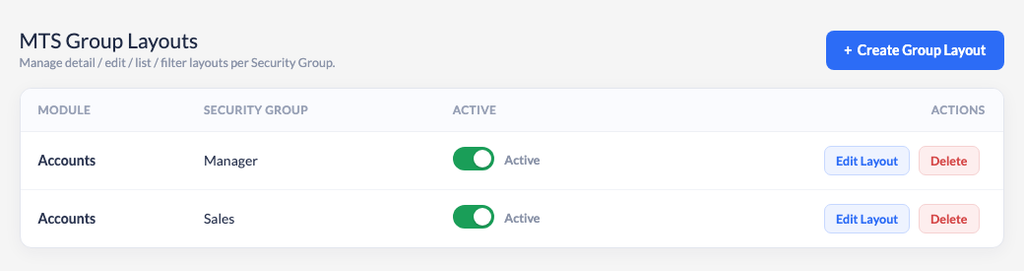
- Go to Admin → MTS Group Layouts → click Group Layouts.
- Or open the URL directly:
#/MTS_ModuleGroupLayoutMapping
The list screen shows all created layouts: Module, Security Group, an Active toggle, and the Edit Layout / Delete actions.
5 Creating a new Group Layout
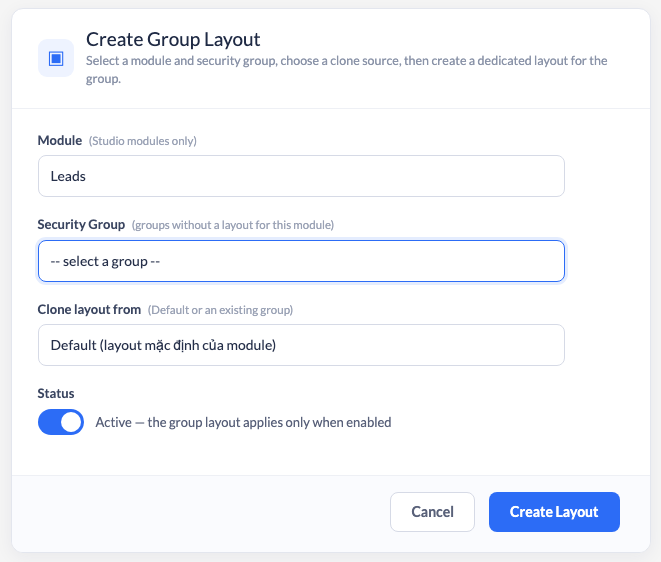
- On the list screen, click + Create Group Layout (top right).
- Choose a Module — the list only contains modules that can be edited in Studio.
- Choose a Security Group — the list self-filters to only show groups that do not yet have a layout for the selected module.
- Choose Clone from: default is
Default(the module's base layout), or pick an existing group to copy quickly. - Toggle Active: on = the layout applies immediately; off = saved but not yet used.
- Click Save. The system creates a dedicated layout set for that group (cloned from the chosen source).
6 Editing the layout in Studio
After creating it, you edit the group's layout using SuiteCRM's familiar Studio tool.
- On the matching row, click Edit Layout — the system opens Studio.
- Go to Module → Layouts and select your group (shown by its Security Group name).
- Pick the view to edit: DetailView, EditView, ListView, or Search.
- Drag & drop fields/panels/columns as usual, then click Save & Deploy.
7 Enabling / disabling a layout (Active)
The Active toggle on the list lets you switch a layout on/off quickly without opening the form:
- Active — the layout is being applied to the group.
- Off — the layout is kept but the group sees the module's default layout.
Just click the toggle; the state is saved instantly (no page reload).
8 Deleting a Group Layout
- On the row to delete, click Delete.
- Confirm in the dialog. The system removes the record and that group's dedicated layout folder.
mts_group_layouts directory). It does not touch the module's default layout,
and does not affect other groups. The path is strictly validated (no accidental deletion).9 How it works
When a user opens a view (detail/edit/list/search), the system decides the layout as follows:
If there is no layout or the layout is Off → the module's default layout is used.
- The group's layout is stored at:
custom/modules/{Module}/metadata/mts_group_layouts/{group_id}/ - The folder is named by the Security Group UUID (the group name is still shown in the UI).
- No core edits — the plugin loads layouts through SuiteCRM 8's standard extension mechanism.
No changelog entries yet.
Which layout applies if a user is in multiple groups?
What if a user is not in any group that has a layout?
Are administrators affected by layouts?
Why can\'t I create a second layout for the same module + group?
I edited in Studio but see no change?
Related SuiteCRM Plugins

MTS Notification
Never miss a hot lead or high-priority case with instant browser push notifications and header alert badges.

MTS Language Translate Tool
Translate labels, dropdowns, module names, and custom strings directly inside SuiteCRM without editing PHP language files.

MTS Favorite Widget
Keep active deals, VIP accounts, and critical cases pinned to your sidebar for lightning-fast 1-click access anytime.
Request this plugin
We don't run automated checkout yet — every order goes through a short form so we can confirm your SuiteCRM version, license type, and send a secure payment link.